

Add a connector
Configure a provider connection through the guided setup without exposing stored secrets.
Start the wizard
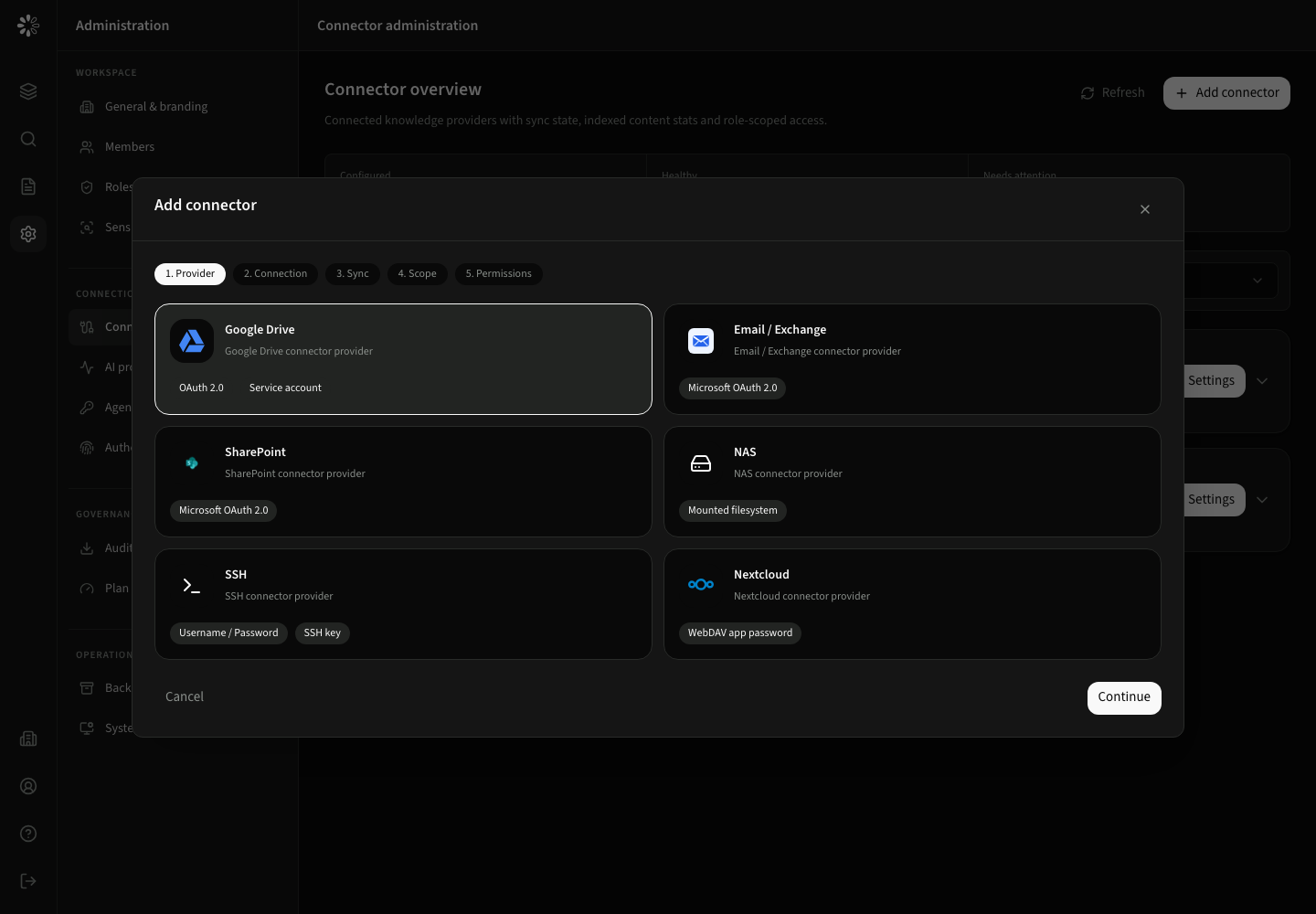
- 1Choose provider
- 2Connect account
- 3Select sync strategy
- 4Define scope
- 5Grant role access
- Open Administration → Connections & identity → Connector administration.
- Select Add connector.
- Choose a provider from the catalog.
- Give the instance a descriptive name. If left empty, CogLake uses the provider name with a running number.
Configure the connection
The second step displays only authentication methods supported by the selected provider. Depending on the provider, this can include OAuth, username and password, SSH keys, or a mounted filesystem path.
For OAuth providers:
- Create the OAuth application at the provider.
- Enter the client settings and the exact callback URI displayed by CogLake.
- Select Connect and complete provider consent in the new browser flow.
- Return to the wizard after the callback reports success.
Google Drive and Microsoft providers store refresh credentials per connector instance. This allows separate connector instances to use different accounts.
Test before continuing
Use the available connection test after saving or completing OAuth. OAuth-backed providers can validate the connected account without asking for a manually pasted access token. If a provider does not expose a meaningful standalone test, continue only after its OAuth callback and scope listing succeed.
Secret fields
When editing an existing connector, a configured secret is shown only as Secret is stored. Leaving the field empty preserves the existing value. Entering a new value replaces it when settings are saved.
Continue with sync, scope, and role access before starting the first import.