

SharePoint
Connect a Microsoft 365 site, choose its libraries and grant access in CogLake.
Before you start
You need permission to manage connectors in CogLake, a Microsoft work account with access to the site, and someone authorized to configure the Entra application. This connector reads documents; it does not write to SharePoint. Use a dedicated account with access only to the intended sites. The account used for synchronization does not need an administrator role or permission to register applications. See Exact permissions and who grants them, or Welche Berechtigungen braucht welches Konto? in German.
1. Register the Microsoft application
Open Microsoft Entra ID in the Azure portal or Entra admin center.
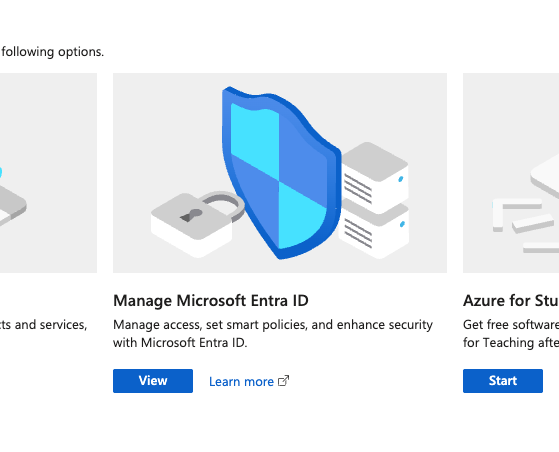
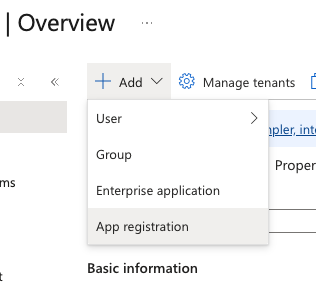
Choose App registrations → New registration, or Add → App registration.
Name the application CogLake SharePoint. For one organization, choose Accounts in this organizational directory only. A multitenant registration is only necessary when the same app must be used by multiple Microsoft organizations.
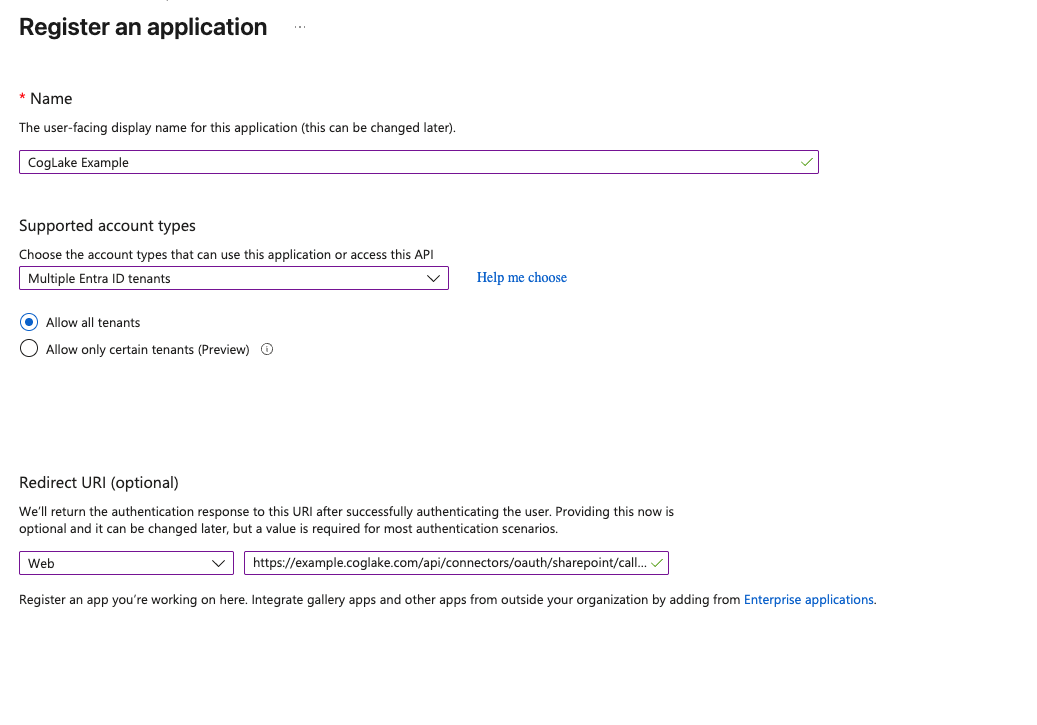
In CogLake, open Administration → Connections → Connectors → Add connector → SharePoint → Connection. Copy the readonly OAuth redirect URI. In Entra, select platform Web and paste it as a redirect URI. For example, a Load installation uses https://load.coglake.com/api/coglake/connectors/oauth/sharepoint/callback. Never copy localhost or the screenshot's example address into a deployed installation.
2. Credentials and permissions
- From the registration's Overview, copy Application (client) ID and Directory (tenant) ID into CogLake.
- Under Certificates & secrets, create a client secret. Copy its Value, not its secret ID, into the password field. Record its expiry in your organization's credential rotation process.
- Under API permissions → Microsoft Graph → Delegated permissions, configure
User.Read,Files.Read.All,Sites.Read.All,offline_access,openidandprofile. Ask your Entra administrator to grant the required consent. Do not substitute application permissions: this connector uses an interactive delegated flow. - Enter the actual site URL, such as
https://contoso.sharepoint.com/sites/operations. A document sharing link or an Entra portal URL is not a site URL.
Microsoft reference: application registration and Graph permissions.
Exact permissions and who grants them
A. The Microsoft account used to connect
- Use an enabled work/school account with the required SharePoint service entitlement in the organization that hosts the site.
- Give it Read access to the intended website, for example through the Site visitors group. It must also be able to read and download the selected libraries, folders and documents; separately restricted content requires its own access grant.
- If Enterprise applications → your application → Properties → Assignment required? is enabled, assign this account under Users and groups.
- Complete the organization's MFA and Conditional Access requirements. Do not disable those controls to connect CogLake.
- No Global Administrator, SharePoint Administrator, app-owner or app-registration role is required for this account. Being a Microsoft administrator alone does not grant access to site content.
Before connecting, sign in to SharePoint with this exact account, open the target site and download a representative document. A site owner can grant Read through Site permissions → Share site, or Add members → Share site only, depending on the site type. See Microsoft's site sharing instructions, administrator role explanation and application assignment guide.
B. The application's delegated permissions
These are the scopes currently requested by CogLake. Configure them under App registrations → your application → API permissions → Add a permission → Microsoft Graph → Delegated permissions, not Application permissions.
| Scope | Purpose in this connection |
|---|---|
Sites.Read.All | Read site information and SharePoint content in the signed-in user's access context. |
Files.Read.All | Read files the signed-in user can access. |
User.Read | Basic signed-in user profile access. |
openid | OpenID Connect sign-in. |
profile | Basic identity/profile information during sign-in. |
offline_access | Request a refresh token so scheduled sync can continue after the initial access token expires. |
These app scopes do not replace the user's site permissions. CogLake does not require Sites.ReadWrite.All, Files.ReadWrite.All, Sites.FullControl.All or Directory.Read.All for this flow. App-only/client-credentials authorization is not an alternative supported by this connector setup. See the Microsoft Graph scope reference and OpenID Connect scopes.
C. Who approves the app?
The connecting user does not need permission to approve applications for the organization. Recommended setup:
- An authorized administrator reviews these six delegated scopes and selects API permissions → Grant admin consent for your organization. For these delegated permissions, Cloud Application Administrator or Application Administrator can grant consent; do not assign either role to the sync account just for this step.
- If sign-in is restricted through user assignment, the administrator also assigns the sync account to the enterprise application.
- In CogLake, the operator selects Connect and signs in to Microsoft with the restricted sync account, not the administrator who granted consent. Keep the same CogLake browser session throughout the callback.
If your organization's user-consent policy permits this application and all requested scopes, the user can instead grant their own delegated consent. If it does not, have the administrator preapprove the app; do not broaden the user's role. Existing administrator consent covers the approved scopes, so the user need not grant them again unless the consent or requested permissions change. Microsoft consent guidance and admin consent steps.
The person operating CogLake additionally needs its Manage connectors permission (sources:manage). This CogLake permission is separate from all Microsoft roles and access grants.
Optional: make the connecting user an app owner
A user who already has access to the SharePoint site can also be made an owner of the connector's app registration. This is useful when that person should manage the application setup as well as connect it:
- An authorized app administrator or existing owner opens Entra ID → App registrations → the CogLake SharePoint application → Owners → Add owners.
- Select the existing user with access to the intended SharePoint site and save.
- With the delegated scopes and required consent configured, return to the existing CogLake connector, select Connect, and sign in with that user.
App ownership is optional, not a prerequisite or a replacement for site access, consent or required enterprise-app user assignment. It grants additional application-management powers, including managing credentials, so use it only when the person should have that responsibility. App ownership alone does not authorize organization-wide admin consent. Microsoft: assigning application owners.
Content access and permission metadata are different
Read access is the baseline for importing content, not a guarantee that Microsoft exposes every sharing permission. The connector also reads file permission metadata. Microsoft documents that non-owner callers may receive only sharing permissions applying to themselves. Validate the import with both allowed and denied CogLake users before using it broadly; a successful connection alone does not prove complete permission mapping. Do not grant Full Control merely to fix an initial 403. Microsoft Graph permission-list behavior.
3. Connect, then finish all remaining steps
Select Connect, sign in at Microsoft and approve the requested access. Keep the same CogLake browser session. After returning, the wizard continues at Sync, not at the finished connector list.
- Sync: choose Microsoft Graph delta for scheduled incremental updates, or Manual only. Set the interval to match your needs.
- Scope: choose which document libraries/folders CogLake should import. Start with a small allowlist for the first test. A failed listing is an error to resolve, not a reason to import everything.
- Permissions: select the CogLake roles that may search or read the source. Source document permissions still apply; granting a connector role is not a replacement for SharePoint access.
- Save: only now is setup complete. Scheduled synchronization can begin when enabled; Manual only waits for Start sync.
An unfinished OAuth setup stays as a paused draft. Reopen its settings to continue. Do not share secrets or authorization links in support screenshots.
Verify the result
Check connection health, run a sync, wait for processing/indexing to finish and search for a known document title or phrase. Test with both an authorized employee and a user who must not see the document. The connector card reports sync progress; diagnostics explain individual import failures. Removing a connector does not delete SharePoint files.
Troubleshooting
| Symptom | Check |
|---|---|
| Redirect URI mismatch / AADSTS50011 | The Entra Web callback must exactly match the URL copied from this installation. |
| Invalid secret | Use the secret value and check its expiry. |
| Consent required / access denied | Verify delegated scopes, administrator consent and the signed-in account's site access. |
403 accessDenied during site lookup | Microsoft sign-in and token exchange completed, but the subsequent site request was denied. Check this account's site access, delegated scopes and organizational access policies. An admin role or admin consent alone is not enough. |
SharePoint refresh token is required | No usable stored authorization is available. Select Connect on the existing connector and complete sign-in with the correct account. CogLake only saves the callback's tokens after the site lookup succeeds, so this can follow an earlier site-access failure. Do not create another connector or enter a refresh token manually. |
| Callback fails after switching browsers | Restart Connect in the same authenticated CogLake session. OAuth state is short-lived and single-use. |
| Libraries cannot be loaded | Check site URL, Microsoft account access and Graph connectivity; retry before saving scope. |
| Documents imported but no search result | Check processing/indexing status, role access and source permissions. |
Kurzanleitung auf Deutsch
Entra ID öffnen → App-Registrierung anlegen → Plattform Web → die unveränderbare Weiterleitungs-URL aus CogLake kopieren. Für die eigene Organisation normalerweise nur dieses Verzeichnis wählen; die Abbildung zeigt lediglich ein Beispiel. Anwendungs-ID, Verzeichnis-ID und den Wert des Clientgeheimnisses in CogLake eintragen. Die delegierten Graph-Berechtigungen aus Schritt 2 durch den Entra-Administrator genehmigen lassen. Die echte SharePoint-Site-URL eintragen und Verbinden wählen. Nach der Microsoft-Anmeldung Synchronisierung, Umfang und Berechtigungen abschließen und speichern. Ein Entwurf synchronisiert noch nicht. Danach einen kleinen Import und die Suche mit berechtigten und nicht berechtigten Benutzern prüfen.
Welche Berechtigungen braucht welches Konto?
Das Microsoft-Konto für die Verbindung und Synchronisierung:
- Ein aktiviertes Geschäfts-/Schulkonto mit der erforderlichen SharePoint-Nutzungsberechtigung in der Organisation der Website.
- Lesen auf der gewünschten Website, beispielsweise über die Gruppe Websitebesucher. Auch die ausgewählten Bibliotheken, Ordner und Dateien müssen lesbar und herunterladbar sein. Bei abweichenden Einzelberechtigungen ist der Zugriff zusätzlich zu erteilen.
- Falls unter Unternehmensanwendungen → Anwendung → Eigenschaften → Zuweisung erforderlich? aktiviert: das Konto unter Benutzer und Gruppen zuweisen.
- Die geltenden MFA- und Conditional-Access-Anforderungen erfüllen; diese nicht für die Verbindung abschalten.
- Keine Administratorrolle nötig: weder Globaler Administrator noch SharePoint-Administrator, App-Besitzer oder Berechtigung zum Registrieren von Apps. Eine Admin-Rolle allein gewährt umgekehrt keinen Zugriff auf Website-Inhalte.
Ein Websitebesitzer kann dem vorhandenen Konto unter Websiteberechtigungen → Website teilen beziehungsweise Mitglieder hinzufügen → Nur Website teilen die Berechtigung Lesen geben. Ein neuer Benutzer ist nicht zwingend erforderlich. Für einen dauerhaften Connector empfiehlt sich ein separates Konto ohne Admin-Rolle und mit Zugriff nur auf die vorgesehenen Websites. Vor dem Verbinden mit genau diesem Konto die Website öffnen und ein Beispieldokument herunterladen. Microsoft-Anleitung zur Websitefreigabe.
Die Entra-App benötigt folgende delegierte Berechtigungen:
| Berechtigung | Zweck |
|---|---|
Sites.Read.All | Websiteinformationen und SharePoint-Inhalte im Zugriffskontext des angemeldeten Benutzers lesen. |
Files.Read.All | Dateien lesen, auf die der angemeldete Benutzer zugreifen darf. |
User.Read | Grundlegendes Benutzerprofil lesen. |
openid | Anmeldung über OpenID Connect. |
profile | Grundlegende Identitäts- und Profilangaben bei der Anmeldung. |
offline_access | Einen Refresh-Token anfordern, damit die Synchronisierung nach Ablauf des ersten Zugriffstokens fortgesetzt werden kann. |
Einrichten unter App-Registrierungen → Anwendung → API-Berechtigungen → Berechtigung hinzufügen → Microsoft Graph → Delegierte Berechtigungen. Nicht durch Anwendungsberechtigungen ersetzen: Der aktuelle Connector arbeitet im Benutzerkontext und unterstützt in dieser Einrichtung keinen App-only-/Client-Credentials-Zugang. Schreib-, Vollzugriffs- oder Verzeichnisleserechte wie Sites.ReadWrite.All, Files.ReadWrite.All, Sites.FullControl.All und Directory.Read.All werden hierfür nicht benötigt. Die App-Freigabe ersetzt keine Website-Berechtigung des Benutzers.
Muss der Benutzer der App selbst Zugriff erteilen dürfen?
Nicht, wenn der Administrator die App vorab genehmigt:
- Ein berechtigter Administrator prüft die sechs delegierten Berechtigungen und wählt API-Berechtigungen → Administratorzustimmung für die Organisation erteilen. Dafür genügt bei diesen delegierten Berechtigungen beispielsweise Cloudanwendungsadministrator oder Anwendungsadministrator. Diese Rollen nicht dem Synchronisierungskonto zuweisen, nur damit es die Anmeldung abschließen kann.
- Falls die Anwendung eine Benutzerzuweisung verlangt, weist der Administrator das Synchronisierungskonto der Unternehmensanwendung zu.
- Anschließend im bestehenden CogLake-Connector auf Verbinden klicken und bei Microsoft das eingeschränkte Konto mit Websitezugriff auswählen – nicht das Admin-Konto, das lediglich die App genehmigt hat. Die CogLake-Browsersitzung dabei beibehalten.
Eine eigene Benutzerzustimmung ist alternativ nur möglich, wenn die Zustimmungsrichtlinie der Organisation diese App und alle angeforderten Berechtigungen erlaubt. Andernfalls genehmigt der Administrator die App vorab; der Benutzer benötigt keine zusätzlichen Admin-Rechte. Bereits genehmigte Berechtigungen müssen beim Anmelden normalerweise nicht erneut bestätigt werden. Microsoft: Benutzer- und Administratorzustimmung.
Die Person, die den Connector in CogLake einrichtet, benötigt zusätzlich Konnektoren verwalten (sources:manage). Das ist eine CogLake-Berechtigung, keine Microsoft-Rolle.
Optional: Benutzer mit Websitezugriff als App-Besitzer hinterlegen
Ein Benutzer, der bereits Zugriff auf die SharePoint-Website hat, kann zusätzlich als Besitzer der App-Registrierung hinterlegt werden. Dieser Weg eignet sich, wenn dieselbe Person auch die Anwendungseinrichtung verwalten soll:
- Ein berechtigter App-Administrator oder vorhandener Besitzer öffnet Entra ID → App-Registrierungen → die CogLake-SharePoint-Anwendung → Besitzer → Besitzer hinzufügen.
- Den vorhandenen Benutzer mit Zugriff auf die gewünschte SharePoint-Website auswählen und speichern.
- Wenn die delegierten Berechtigungen und die erforderliche Zustimmung eingerichtet sind, im bestehenden CogLake-Connector erneut Verbinden wählen und sich mit diesem Benutzer anmelden.
Der App-Besitz ist optional. Er ersetzt weder Websitezugriff noch Zustimmung oder eine gegebenenfalls erforderliche Benutzerzuweisung zur Unternehmensanwendung. Besitzer erhalten zusätzliche Verwaltungsrechte, unter anderem für App-Zugangsdaten. Deshalb nur vergeben, wenn die Person die Anwendung tatsächlich verwalten soll. Die Besitzerrolle allein berechtigt nicht zur organisationsweiten Administratorzustimmung. Microsoft: Anwendungsbesitzer zuweisen.
Grenzen und Fehler richtig einordnen
- Inhalte lesen und alle Freigaben erkennen sind nicht dasselbe: Der Connector liest auch Berechtigungsinformationen zu Dateien. Microsoft liefert bei einem Aufruf durch Nicht-Eigentümer gegebenenfalls nur die Freigaben zurück, die diesen Aufrufer betreffen. Leserechte ermöglichen daher nicht automatisch eine vollständige Übernahme aller Berechtigungen. Vor breiter Nutzung mit berechtigten und unberechtigten CogLake-Benutzern testen; ein erfolgreicher Verbindungstest allein genügt dafür nicht. Nicht pauschal Vollzugriff vergeben, um einen anfänglichen 403 zu beheben. Microsoft-Dokumentation.
403 accessDeniedbeim Websiteabruf: Anmeldung und Token-Austausch haben funktioniert, aber Microsoft verweigert die nachfolgende Websiteanfrage. Websitezugriff des tatsächlich angemeldeten Kontos, delegierte Berechtigungen und Zugriffsrichtlinien prüfen. Administratorzustimmung allein gewährt keinen Zugriff auf Website-Inhalte.SharePoint refresh token is required: Es liegt keine nutzbare gespeicherte Autorisierung vor. Beim bestehenden Connector erneut Verbinden wählen und die Anmeldung mit dem richtigen Konto abschließen. CogLake speichert die Tokens aus dieser Anmeldung erst nach erfolgreicher Websiteprüfung; die Meldung kann deshalb Folge eines vorherigen Zugriffsfehlers sein. Keinen weiteren Connector anlegen und keinen Refresh-Token manuell eintragen.- Wenn CogLake eine Diagnose-ID anzeigt, diese dem Administrator oder Support mitteilen. Keine Clientgeheimnisse, Tokens oder vollständigen OAuth-Rückleitungslinks weitergeben.