

Users, roles, and permissions
Manage identities and combine product permissions with workspace and connector access.
Users
Open Administration → Workspace → Members to invite a member, edit identity details, assign one or more roles, require a password change, disable access, or remove an account. Search and filter by status or role when the member list grows.
Invite a member
- Select Invite member and enter the person's email address and optional display name.
- Choose the platform role and any additional custom roles for this workspace.
- Send the invitation. The single-use link expires automatically.
- Use the pending invitations list to resend or revoke an invitation before it is accepted.
An existing CogLake identity keeps its current sign-in credentials and gains a separate membership in this workspace. A new identity chooses its name and password while accepting the invitation. Roles are stored per workspace, so the same person can be an administrator in one workspace and a member in another.
For organization-managed sign-in, check the identity provider and group mappings as well as the CogLake membership. Changing a person's email alone is not a safe way to transfer ownership or access.
Platform role
Every custom role has a platform role of either Administrator or Member:
- Administrator is the trusted administrative baseline and receives the complete administrative permission set.
- Member starts without administrative authority and receives only the granular permissions you select.
Use Member for department, project, support, and read-only roles. Create as few platform-administrator roles as possible.
Product permissions
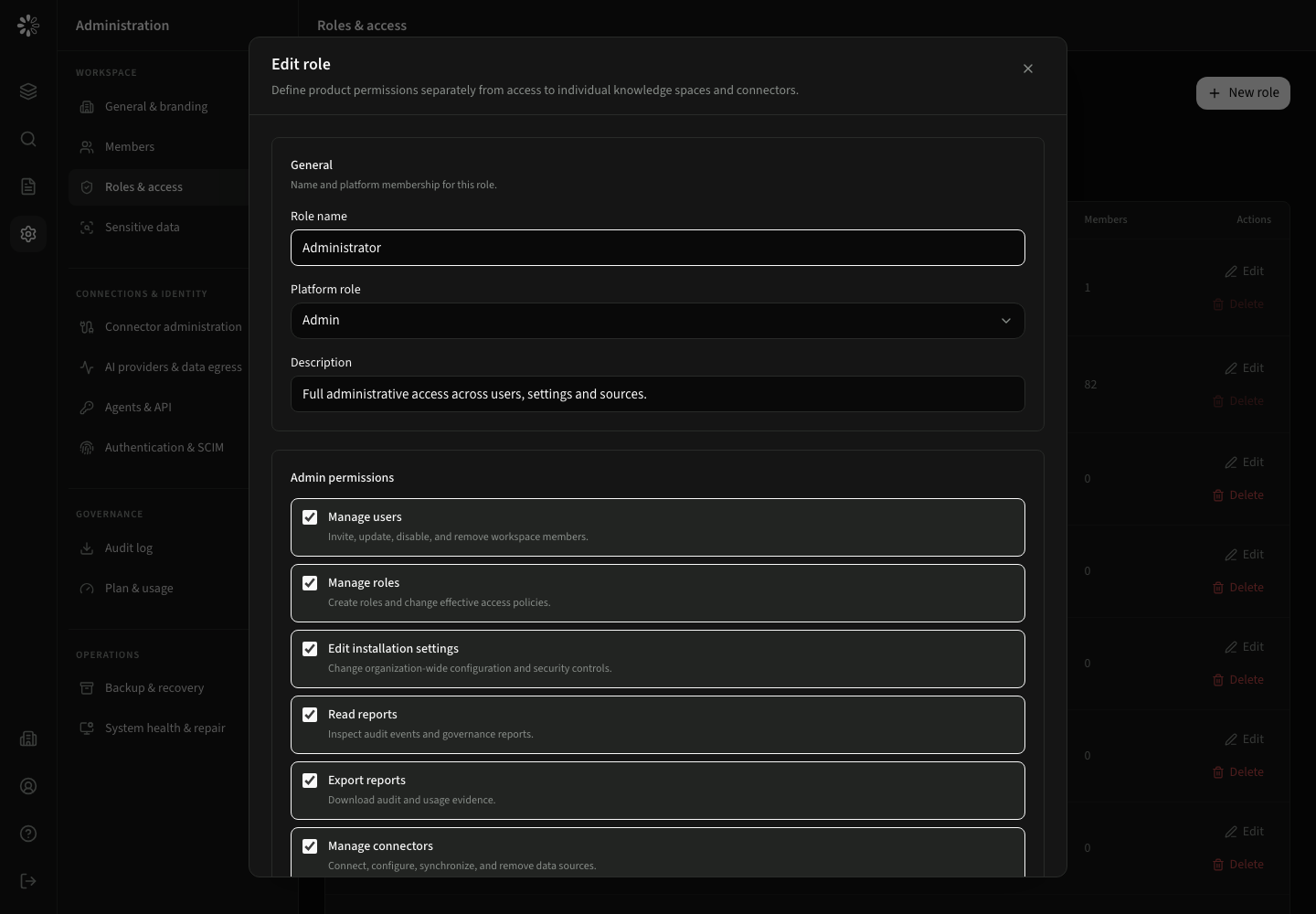
| Permission | Allows |
|---|---|
| Manage users | User lifecycle and identity mappings |
| Manage roles | Role policies and permission-preview searches |
| Edit installation settings | Authentication, appearance, backup, and repair operations |
| Read / export reports | Audit and operational reporting |
| Manage connectors | Connector setup, sync, diagnostics, and indexing operations |
| Read / write knowledge | Read or modify internal knowledge content |
| Create personal / company workspace | Create the respective workspace type |
| Use search and retrieval | Discover, answer, and retrieval requests |
| Use AI features | Chats, agents and the corresponding permitted actions |
| Personal model connections | Your own BYOK connections, additionally subject to organization policy |
| Manage AI resources | The selected skill, plugin and model-management actions |
Resource access
Product permissions are combined with resource scopes:
- Knowledge bases support None, Read, Write, and Admin.
- Connectors support None, Search, Read, and Write.
- A wildcard scope can apply to all matching resources; an explicit resource entry takes precedence.
The source ACL is checked after these scopes. For example, knowledge:read plus connector Read still does not reveal a Google Drive file that the connected source does not grant to the user's principals.
Built-in roles cannot be removed. A custom role must have no assigned members before it can be deleted; reassign affected members first.
Your own role and the last administrator
An administrator can manage roles within the applicable controls, including assigning additional roles to themselves. CogLake prevents removing the last effective administrator. If you need to reduce your own authority, first assign and verify another active administrator. Do not confuse this safeguard with a subscription restriction.
Disable or remove a member
Disable access when a person should stop using the workspace but their data needs to be retained. Removing a membership immediately removes its access and permanently deletes that person's vault credentials in this company; other saved content and audit history are retained. Disable instead when the vault must be preserved. Review owned agents, personal connections, files and scheduled work first; do not assume another administrator can use a former member's private key. A person's membership in another organization is separate.
Plugin and personal-provider access
Product permissions alone do not release every plugin or provider. Combine the role with the organization's resource release, allowed roles and tools. Personal BYOK additionally requires the organization allowance and the personal connection permission. See models and plugins.
Allowed email domains
Use the organization's available domain restrictions to control eligible sign-up or joining flows. Check invitations and SSO together when changing them. A domain rule is not a replacement for assigning roles, and a new setup default must not be treated as a request to rewrite existing members' settings. Test a permitted and non-permitted address before relying on a new policy.
Recommended setup
- Keep one small administrator role.
- Create business roles with platform role Member.
- Select only required product permissions.
- Add the exact workspaces and connectors each role needs.
- Use Discover's Preview search as role control to validate the result boundary.